Cost Center Monitor List
Cost Center Monitor List
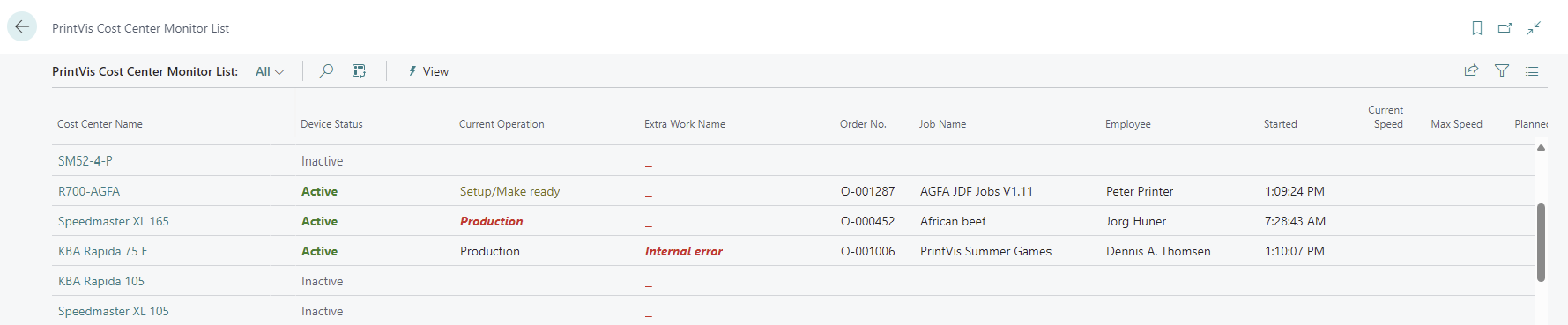
The Cost Center Monitor List provides an overview of all Cost Centers and their current production status.
If more than one employee is logged into a single Cost Center, this list will display the one who started last.
List Fields
This section describes the fields available on the Cost Center Monitor List.
| Field | Description |
|---|---|
| Cost Center Name | The name of the cost center. |
| Device Status | The current status of the device. This value will be Active if time is being recorded, and Inactive if the device is not recording time. |
| Current Operation | The current operation that is running on this cost center. |
| Order Number | If the cost center is recording time against an order, the order number will be listed. |
| Job Name | If the cost center is recording time against an order, the job name for that order will be listed. |
| Employee | Displays the name of the employee who is recording time. |
| Started | The time that the current operation was started. |
| Current Speed | If the device has MOXA or JDF connectivity, this field displays the current speed of the device. |
| Max Speed | Displays the max speed set for the device on the CIM Device setup page. |
| Planned Time | If the cost center is recording time against an order, the planned time for that operation will be listed. |
| Actual Time | Displays the actual time recorded for the operation. |
Cost Center Detail (non-MOXA/JDF Connectivity)
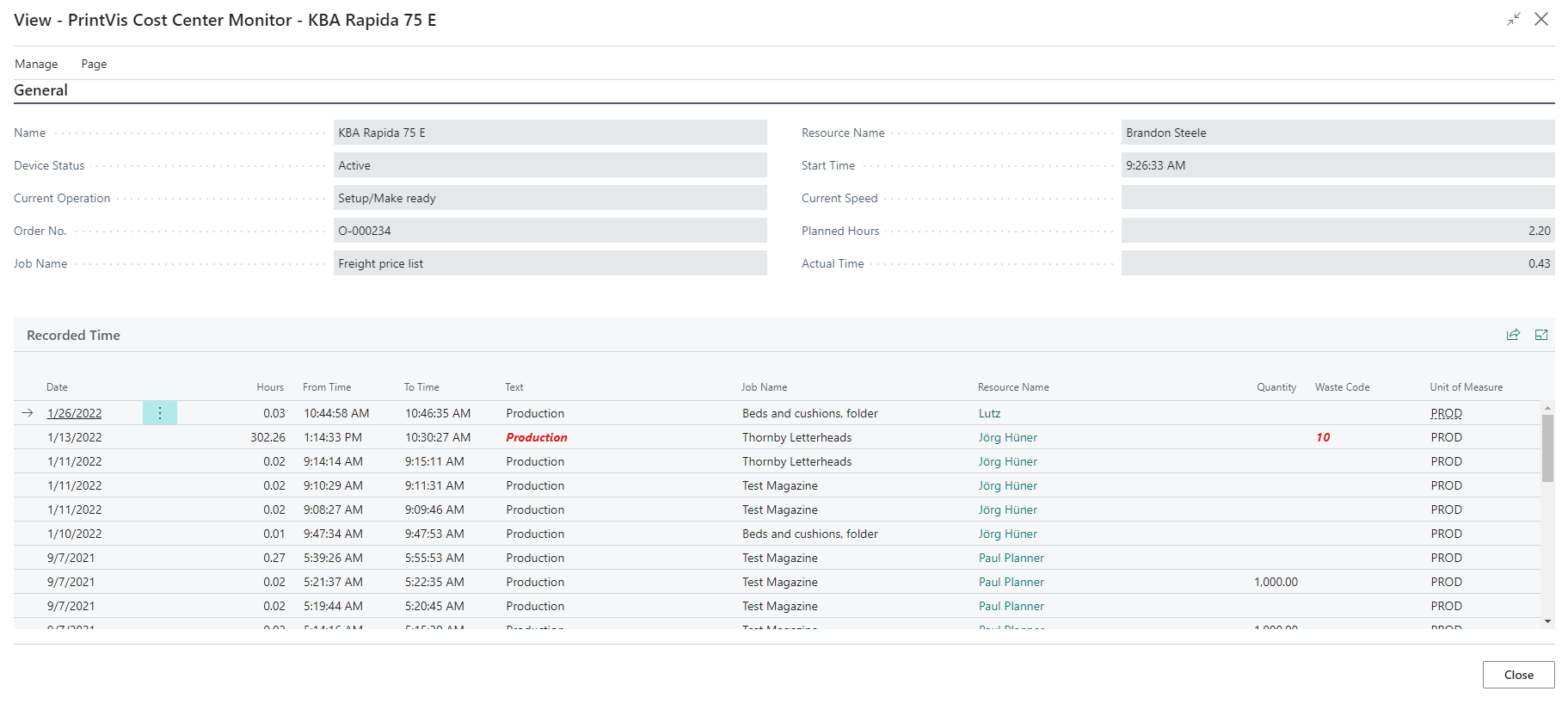
The Cost Center Detail page displays the same top-level values as the Cost Center Monitor List, but includes additional details:
-
At the bottom of the page, it shows all recorded time for that specific Cost Center.
-
If a live-feed camera URL is assigned to the Cost Center, the live video feed will display directly on this page.
-
The page updates every minute to reflect current activity.
| Field | Description |
|---|---|
| Date | The date the time was recorded. |
| Hours | The amount of time that was recorded. |
| From Time | When the recorded time was started. |
| To Time | When the recorded time was stopped. |
| Text | The operation that was recorded. This field will be red if the entry has a related waste code. |
| Job Name | If the recording was against an order, this field displays the job name for that order. |
| Resource Name | The employee who recorded the time. |
| Quantity | If produced quantity was entered for this operation, this field displays that quantity. |
| Waste Code | If a waste code was used, this field displays that waste code. |
| Unit of Measure | The PrintVis UOM that was recorded. |
Cost Center Detail (with MOXA/JDF Connectivity)
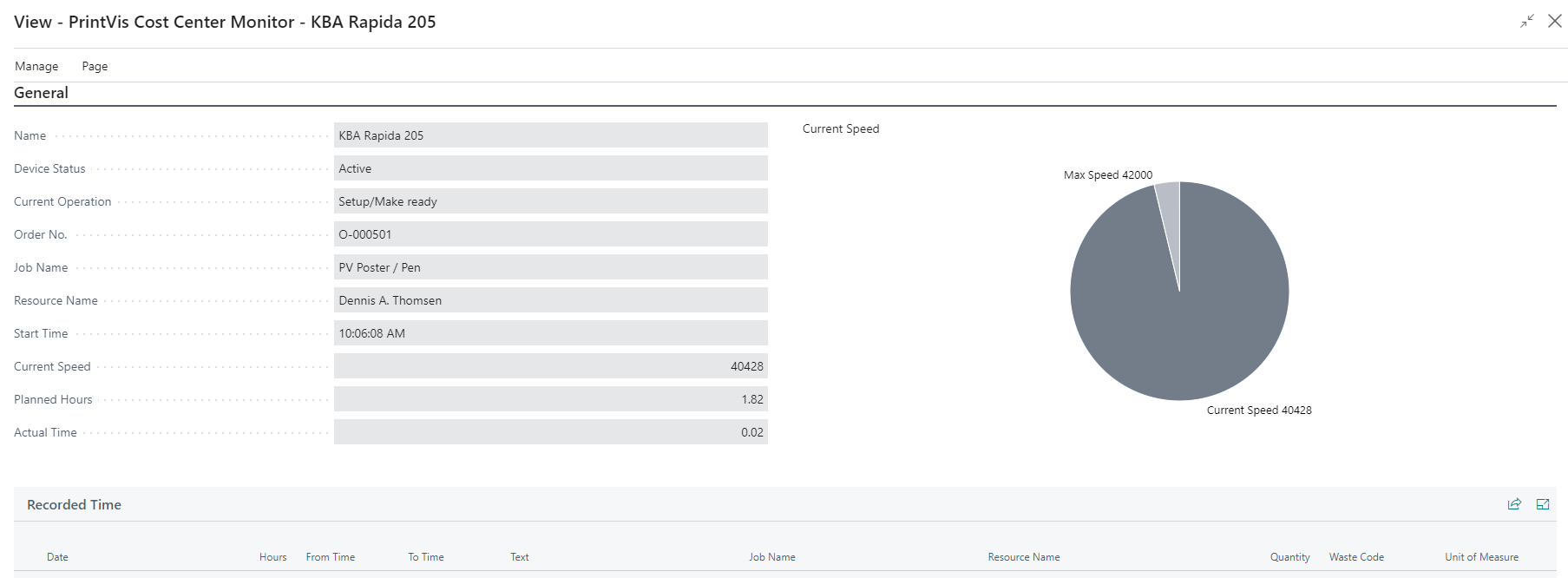
When opening a Cost Center that has MOXA/JDF connectivity, an additional speedometer is displayed to show the current speed of the machine.
This page updates every minute to reflect real-time performance.
Setup
On the Cost Center Setup, there are several fields used specifically for the Cost Center Monitor List.

| Field | Description |
|---|---|
| Exclude from Monitor List | If checked, this cost center will be excluded from the cost center monitor list. |
| Monitor Yellow Warning Pct | Whole percentage (e.g., 95). Colors the operation yellow on the monitor list when actual time exceeds planned time by this percentage. Example: Planned = 1 hr, value = 95 → yellow warning at 0.95 hr. |
| Monitor Red Warning Pct | Whole percentage (e.g., 105). Colors the operation red on the monitor list when actual time exceeds planned time by this percentage. Example: Planned = 1 hr, value = 105 → red warning at 1.05 hr. |
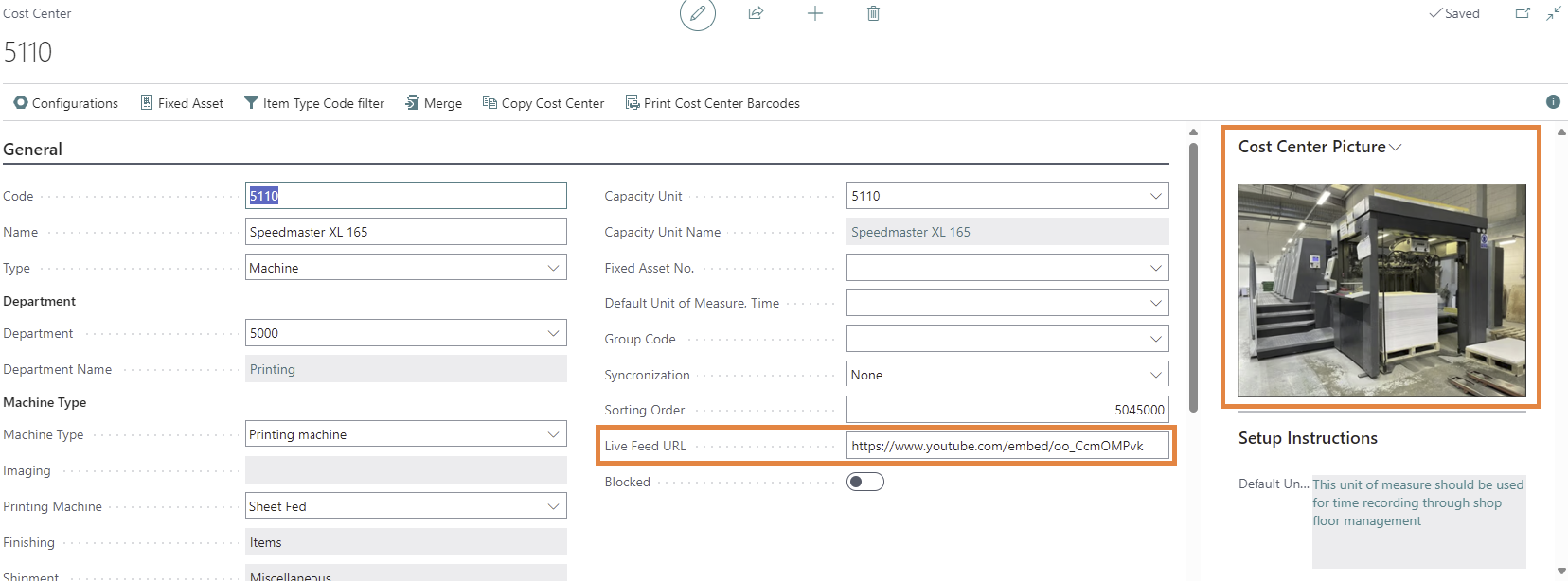 The cost center also has a field for the Live Feed URL and a picture can be added to show on the tile list-view of the cost center monitor list.
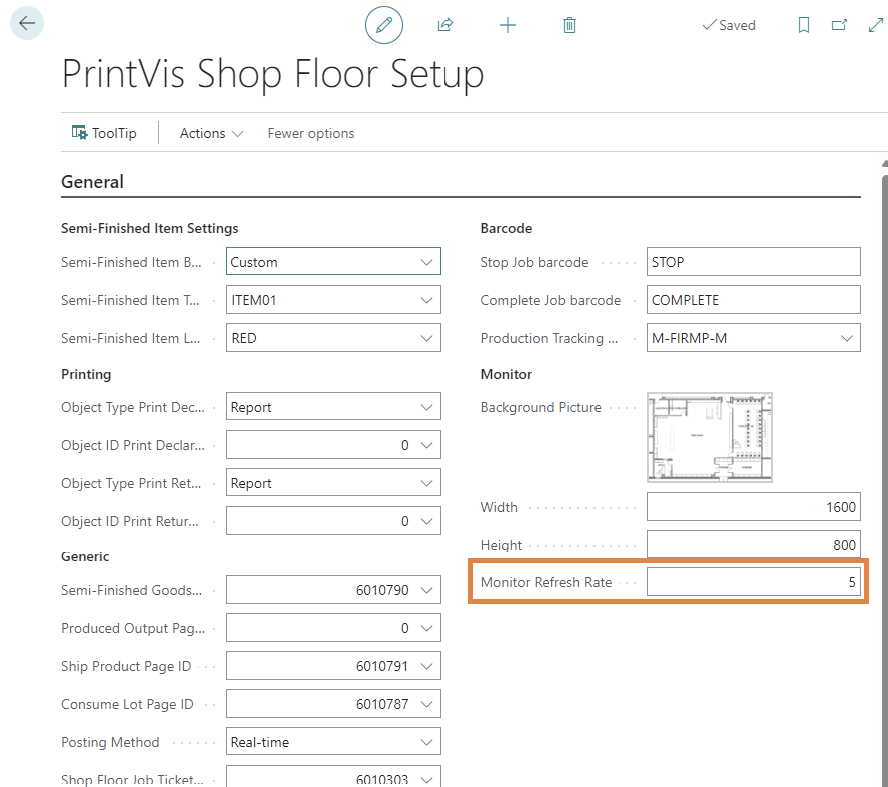
On the Shop Floor setup it is possible to set the refresh rate for the monitor list. This setting is in seconds:
The cost center also has a field for the Live Feed URL and a picture can be added to show on the tile list-view of the cost center monitor list.
On the Shop Floor setup it is possible to set the refresh rate for the monitor list. This setting is in seconds: